Welcome#
Bob is a drum machine and step sequencer for iPad. You build beats on a grid of steps, play eight drum sounds on touch pads, and perform with the result live. Bob plays samples: it comes with four kits of its own sounds, you can import your own, and it also runs as a plug-in inside other music apps.
Bob is for people who want to make rhythms with their fingers. You can start with a one-bar loop and tap steps on and off. Later you can add per-step chance, conditions, ratchets, micro-timing and parameter locks, run tracks at different lengths against each other, and punch effects in over the master mix while the pattern plays.
This guide is written to be read with Bob open. Each section says what a control is for, then how to use it. Names on the screen are shown like this: keys are FILL-style, other labels are in bold. Gestures are used the same way throughout: tap, double-tap, touch and hold, drag and swipe.
Quick start#
Five minutes from a fresh install to your first recorded pass.
- Open a demo. Tap the project name at the left of the top bar. The Projects sheet opens. Scroll to Demos and tap one, for example House. Bob makes a fresh copy for you and the original stays as it is.
- Press play. Tap the play key, the triangle near the left of the transport bar. The key turns to a stop square and the lamps above the grid start to move. Tap it again to stop.
- Tap steps. Each row of the grid is one drum sound and each cell is one sixteenth-note step. Tap a cell to turn it on, tap it again to turn it off. A brighter cell is a harder hit. Switch pages with the keys 1 to 4 at the right of the bar to see the rest of the pattern.
- Play the pads. Tap PADS. A drawer with eight pads opens under the grid. Tap a pad to hear its sound. Where you touch the pad sets how hard it plays: near the top is hard, near the bottom is soft.
- Record a pass. Tap REC so it shows a red outline, make sure the beat is playing, and tap pads in time. Your hits become steps in the pattern. Tap REC again to stop recording.
- Undo. Tap the undo key, the curved arrow pointing left, in the transport bar. The whole recorded pass goes away in one go. Tap the redo key (arrow pointing right) to bring it back.
Everything you do is saved as you go. There is no Save button. See Projects, demos and files.
Screen tour#
This is where everything lives, so you know which section to look in.
The four parts of the screen#
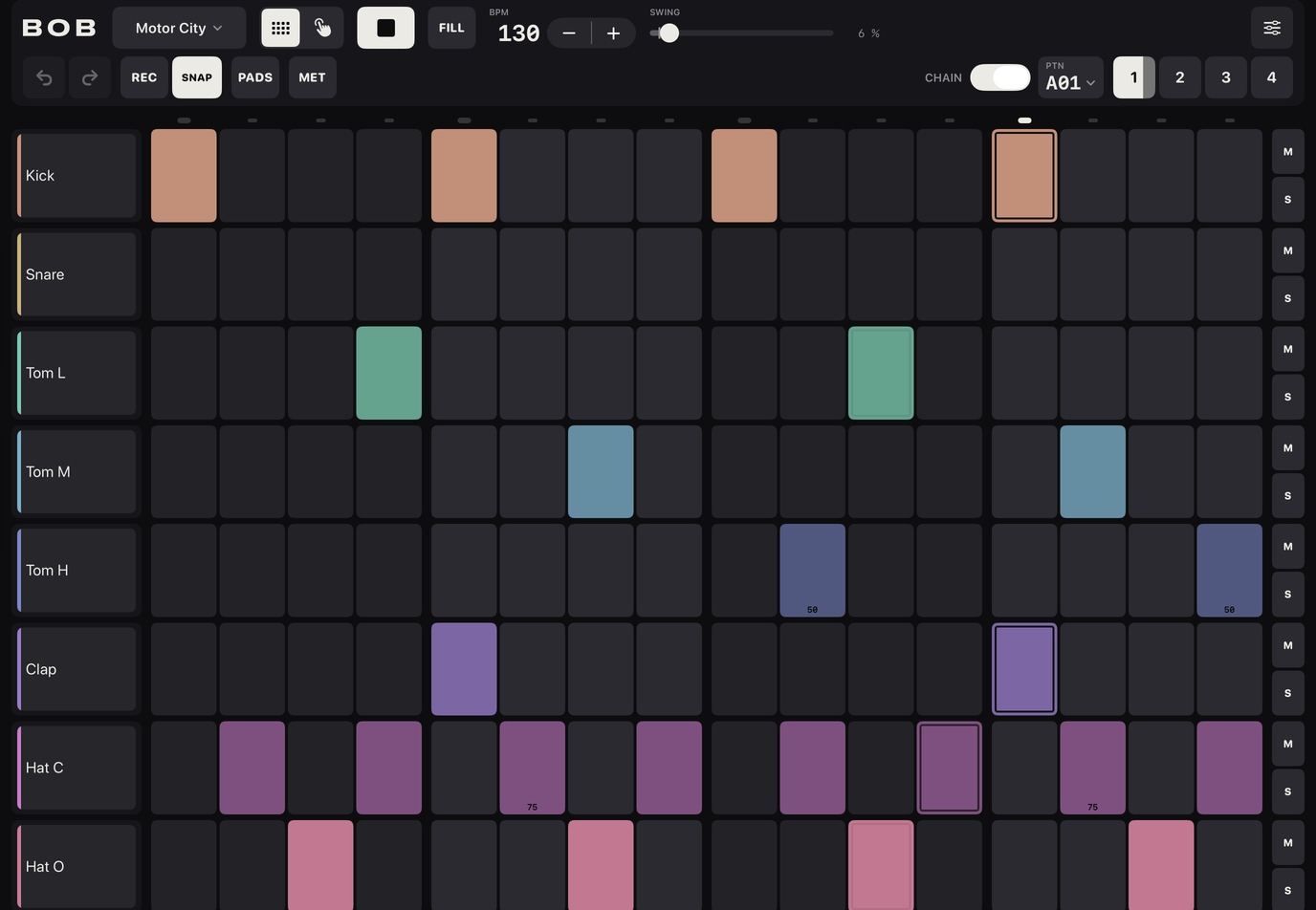
- Transport bar (top). Project name, EDIT/PERFORM switch, undo and redo, play, tempo, swing, recording, and the page and pattern keys. See Transport.
- Step grid (middle). Eight rows, one per track, with sixteen steps each. A row of sixteen small lamps above the first row shows the playhead. See The step grid.
- Voice strip (left of the grid). One track key per row, showing the track's name. At the right of each row are two small keys, M for mute and S for solo. Tapping a track key opens that track's parameter row. See Tracks.
- Drawer (bottom). One shared space under the grid. It holds the step inspector, the pads or the sound browser, one at a time. Opening one closes the other two. Pressing play or stop closes the step inspector and keeps the others open.
EDIT and PERFORM#
Bob has two views of the same project. EDIT is for building patterns. PERFORM is for playing them live, with big keys that need no scrolling or precise taps.
The switch sits in the top bar, to the right of the project name. It has two icon segments and no text: the grid icon is EDIT, the tapping-hand icon is PERFORM. Tap a segment to switch. The change is instant and playback carries on. Switching to PERFORM closes the drawer and any open step selection. Bob remembers which view you were in on this iPad, but it is not part of the project file. See PERFORM.
Wide, tall and small layouts#
Bob arranges itself to fit the space it is given, not the way the iPad is held. The same rules apply to a full-screen iPad, a Stage Manager window and a plug-in panel inside another app.
| Layout | When | What changes |
|---|---|---|
| Wide | At least 1100 pt wide (and 400 pt tall) | Pads in the drawer are square and centred, with the pattern block beside them. |
| Tall | 600 to under 1100 pt wide | The pattern block sits in the pads drawer and the pads fill the rest. This is the layout of a narrow window or an iPad held upright. |
| Small | Under 600 pt wide, or under 400 pt tall | Aimed at plug-in panels. The grid comes first. PAT, PADS and MORE keys reveal the pattern row, the pads and the less-used controls. |
The transport bar is one row only in a window about 1550 pt wide or more, which is wider than any iPad screen. On an iPad you normally see the two-row bar. The small BOB wordmark at the left of the bar shows when there is room for it and is dropped first in narrower windows.
The smallest window Bob opens at is 881 by 800 pt, or the iPad's shorter screen side if that is less.
Transport#
The transport bar holds the controls that run the whole project: start and stop, tempo, undo, and the keys for recording, pages and patterns. This section covers each control in the order it appears.

What is in the bar#
On the two-row bar, row 1 is: BOB wordmark, project name, EDIT/PERFORM switch, play, FILL, tempo, SWING, and Settings at the far right. Row 2 is: undo and redo, REC and SNAP, PADS, MET, then at the right CHAIN, the pattern readout and the page keys 1 to 4.
In the small layout the top row is play, FILL, tempo, then PAT, PADS and MORE. Tap MORE to reveal the EDIT/PERFORM switch, undo and redo, swing, CHAIN and Settings, then REC (with SNAP if there is room), MET, a metronome level fader and the page keys.
In PERFORM the bar loses PADS, PAT and the FILL key, because PERFORM has its own pads, patterns and FILL key. Tap an empty part of the bar to close the step inspector and the sound browser.
Project name#
Opens the Projects sheet, where you switch, create, rename, duplicate, delete, export and import projects, and open demos. Tap it. The name is shown with a small chevron, up to 140 pt wide, and is cut with an ellipsis if it is longer. It reads Project if the project has no name. See Projects, demos and files.
EDIT | PERFORM#
Switches the view. See EDIT and PERFORM.
Undo and redo#
Two keys with curved arrows: left for undo, right for redo. Tap to act. A small label appears under the key for about a second to say what was undone, for example Undid paint Kick. Touch and hold the key for 0.4 seconds to see what it will do without doing it, for example Undo velocity. A key is dimmed when there is nothing to undo or redo. Both keys are switched off during a recording pass. See Undo and redo.
Play and stop#
One key. Tap to start, tap to stop. While playing it shows a stop square and is filled with the accent colour. Until you first press play, a slow ring pulses around it. If you stop while a pattern switch is queued, the switch happens at once. Opening another project stops playback.
Inside a host app the play key is replaced by a non-tappable HOST key. See Host transport.
FILL#
Hold it to play your fill steps. See FILL.
Tempo (BPM)#
The number under BPM is the project's tempo, with a small stepper beside it. Tap the minus or plus to change it by 1. The range is 40 to 240 BPM and a new project starts at 100. Tempo is saved with the project. Tempo changes are not covered by undo.
SWING#
Swing delays every second sixteenth note to give the groove a shuffle. The SWING fader shows 0 % (straight) to 100 % (the offbeat is delayed by half a step). It starts at 0 %. Double-tap the fader to return to 0 %. You can also give single tracks their own swing: see The parameter row. Rolls and pads ignore swing. Swing changes are not covered by undo.
How faders work#
Every fader in Bob behaves the same way. This is what makes them easy to nudge without jumping.
- Drag is relative. Touching down does not move the value. Dragging moves it from where it was.
- Fine adjust. Keep dragging while your finger is more than 40 pt above or below the fader and the movement is slowed to a quarter.
- Double-tap resets the fader to its default. A small tick on the fader marks the default.
- Ghost ring. While you drag, a ring shows where the drag started. If you let go within 2 % of the start, the value snaps back to exactly where it began.
The step inspector's parameter-lock sliders and the nudge strip work differently; they are described where they appear.
REC and SNAP#
Record pad hits into the pattern. See Recording.
PADS#
Opens or closes the pads drawer, lit when open. Only in EDIT. See Pads.
MET#
The metronome. See Metronome.
CHAIN#
A switch. Off, Bob loops the one page you are looking at (16 steps). On, the four pages play one after another as a single 64-step pattern. It is saved with the project and starts off in a new project. All the demos have it on. See Pages and CHAIN.
PTN#
The pattern readout. A small PTN caption sits over the current slot name, such as A07. Tap it to open a popover with all sixteen pattern slots. While a switch is queued the caption changes to an arrow and the queued slot, for example → A09. It is not in the small layout, where PAT does the job. See Patterns.
Page keys#
Four keys labelled 1, 2, 3, 4 pick which sixteen steps the grid shows. See Pages and CHAIN.
Settings#
The sliders icon at the far right. Opens the settings popover. See Settings.
The step grid#
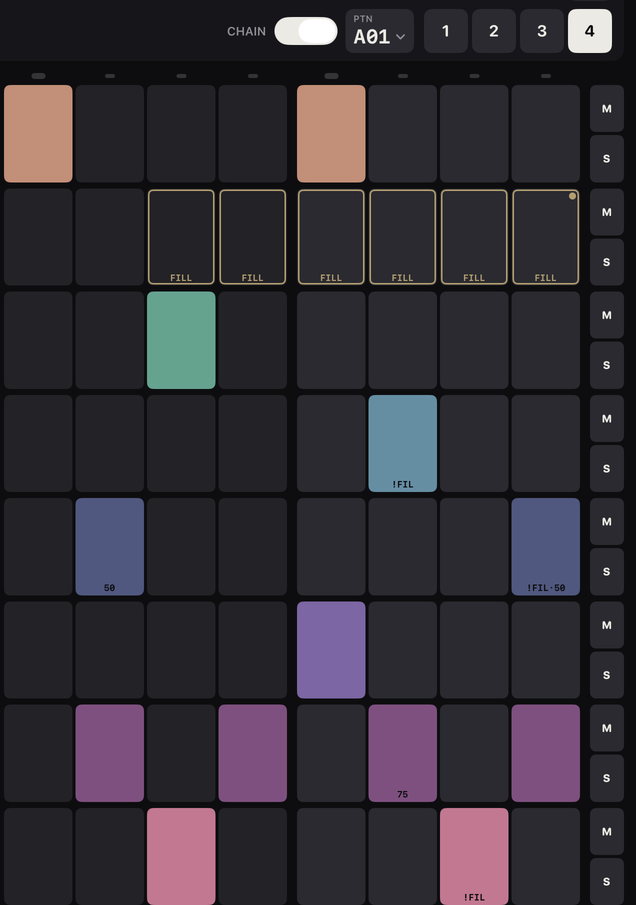
The grid is where you write a pattern. Each row is one track and each cell is one sixteenth-note step. A lit cell plays when the playhead reaches it.
Turning steps on and off#
Tap a cell to switch it on. A new step is a plain hit at velocity 100. Tap it again to switch it off. Switching a step off also wipes anything you set on it (chance, condition, nudge, flam, ratchet, locks) and returns its velocity to 100. Undo brings it all back.
Tap works only while the step inspector is closed. With the inspector open, a tap selects the step instead. See Step inspector.
The grid is fixed. It does not scroll. Touches are matched to the nearest cell, so a tap in the gap between two cells still lands on one. The grid takes one finger at a time. If your finger moves more than 12 pt before the third of a second is up, the touch counts as neither a tap nor a hold and nothing happens.
The cells are in four groups of four, with a slightly different shade on alternate groups, so you can count beats at a glance.
Pages and CHAIN#
Each track has 64 steps, shown as four pages of 16. The page keys 1 to 4 choose the page the grid shows. CHAIN chooses how Bob plays them.
- CHAIN off. Bob loops one page, 16 steps. When you pick another page while playing, the music moves to that page at the end of the page that is playing.
- CHAIN on. The four pages play in order, as one 64-step pattern. A quick tap on a page key just shows that page; touching and holding one while playing loops it (below).
Looping one page while chained#
With CHAIN on and the music playing, touch and hold a page key to loop that page. The loop starts on the next sixteenth, in time. The grid shows the page. Lift your finger and playback rejoins the chain where it would have been. A tap that is too short to land does nothing.
What the page keys show#
- The page you are looking at is filled solid.
- The page that is sounding fills from the left, one sixteenth at a time, so it is full on the page's last step.
- A small dot in the top-right corner of a key means that page is playing but you are looking at another one.
- A short bar under a key means that page is looping. A steady outline means a loop was asked for and has not started yet.
Playhead lamps and ticks#
A row of sixteen small lamps above the first track shows the playhead. A lamp is lit only while Bob is playing and the page you are looking at is the page that is playing. The lamps for steps 1, 5, 9 and 13 are a little bigger, to mark the beats.
A track set shorter than 64 steps runs on its own cycle, so the lamp row cannot show where it is. While playing, a small tick appears in the gap under that track's own current step, if that step is on the page you are looking at. See Track length.
When a step actually plays, its cell flashes briefly with an outline. A step that is skipped by its condition or chance stays dark.
Reading a cell#
Cells carry small marks so you can read a pattern without opening anything. On a step that is switched off but still carries edits, the marks show dimly.
| What you see | Where | What it means |
|---|---|---|
| Brighter or dimmer fill | Whole cell | Velocity. The brightest cell is velocity 127, the faintest is 1. In the Colour theme the fill is the track's colour. |
| Dot | Top right | Flam is on. |
| Small diamond | Top left | At least one parameter lock is set (LEVEL, PITCH, DECAY or PAN). |
| 2, 3 or 4 short bars | Top centre | Ratchet of ×2, ×3 or ×4. The number of bars is the number of hits. |
| ×6 or ×8 | Top centre | Ratchet of six or eight hits. |
| Chevron pointing left | Left edge | The step is nudged early. |
| Chevron pointing right | Right edge | The step is nudged late. |
| Small code such as 2:4·50 | Bottom centre | The trig condition, then a dot, then the chance. See the code list below. |
| Hollow cell (outline only) | Whole cell | A step that will not play right now: a Fill step while FILL is off, or a Not fill step while FILL is on. |
| Dashed outline | Whole cell | A hit proposed by the Euclidean generator, shown before you commit. See GEN. |
| Outline in the text colour | Whole cell | The step is selected in the step inspector. |
| Brief inner outline that fades | Whole cell | The step has just played. |
| Cell faded to 30 % | Whole cell | The step is past the end of the track's length, and ignores touches. |
| Whole row faded to 55 % | Row | The track is muted, or its level is 0. |
| Small tick | Gap under a cell | Where a short track is now. See Track length. |
The code at the bottom of a cell is the condition name followed by the chance:
| Code | Condition |
|---|---|
| A:B (such as 2:4) | Plays on loop A of every B. |
| 1ST / !1ST | 1st / Not 1st |
| FILL / !FIL | Fill / Not fill |
| PRE / !PRE | Pre / Not pre |
| NEI / !NEI | Nei / Not nei |
| A bare number: 25, 50, 75 | Chance of playing, in percent. Nothing is shown at 100. |
So 2:4·50 reads "loop 2 of every 4, and then a 50 % chance".
Step inspector#
The step inspector is where a step gets its own character: how hard, how likely, when, and with which sound settings. It edits one step or several at once.
Opening it and selecting steps#
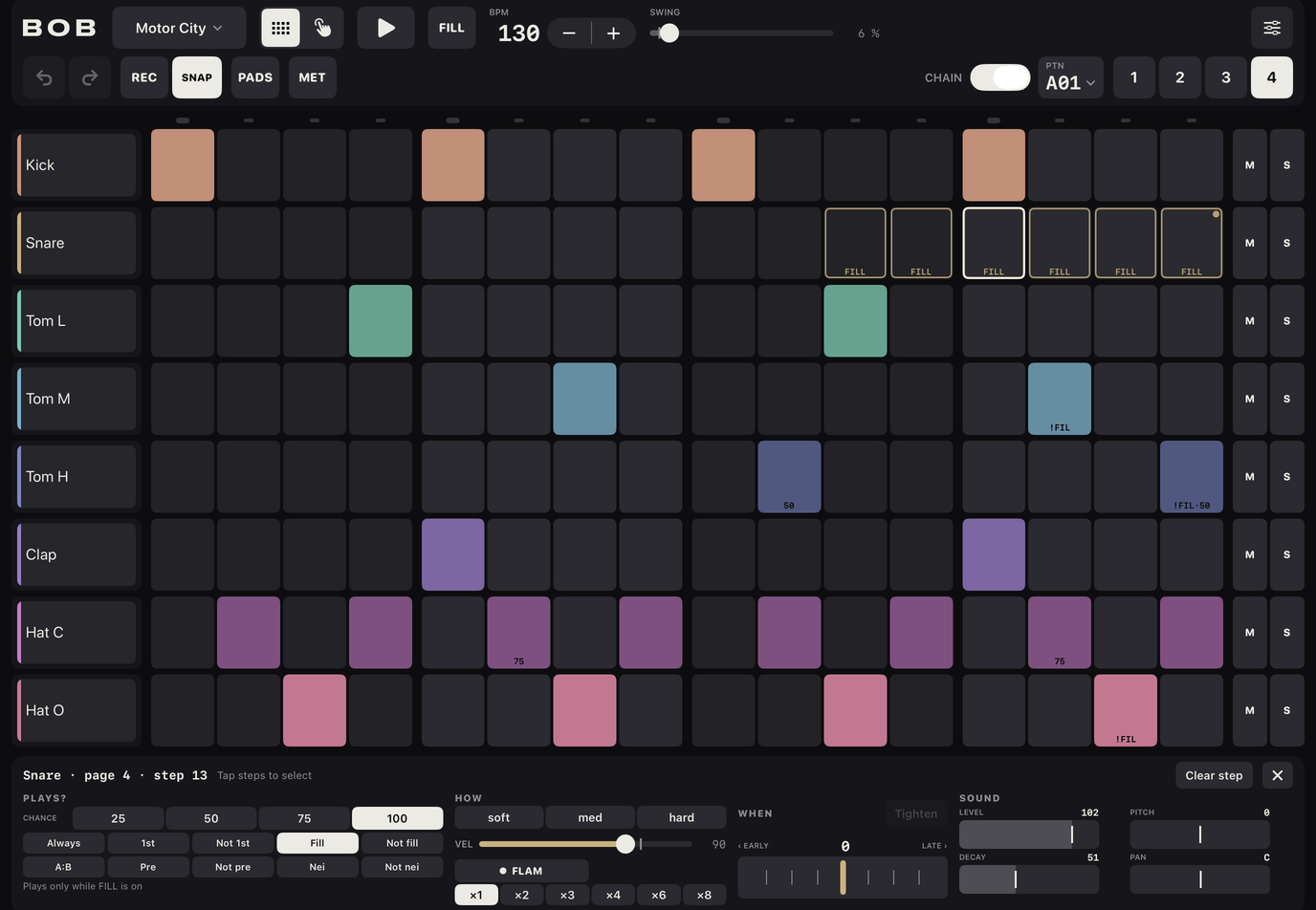
- One step. Touch and hold a cell for about a third of a second. You feel a tap and the inspector opens on that step.
- A range. Touch and hold a cell and, without lifting, drag along the row. Every step from where you began to where you are is selected. Ranges stay inside one track and one page.
- Add or remove steps. With the inspector open, tap a cell to add it to the selection, tap it again to remove it. You can pick steps on different tracks.
The selected cells get an outline. The title in the inspector's header says what is selected: for example Snare · page 1 · step 7, Snare · 4 steps, 6 steps · 3 tracks or No step selected. Controls are greyed out when nothing is selected.
The inspector closes with the × at its right, when you press play or stop, when you open the pads or the sound browser, when you switch to PERFORM, or when you tap an empty part of the transport bar. If you change page or pattern slot, the selection is cleared but the inspector stays open.
On a wide window the inspector docks in four columns: PLAYS?, HOW, WHEN and SOUND. In a narrow window they sit in two rows of two. In a short window (under 500 pt tall) the inspector is a half-height sheet with three tabs: PLAYS?, HOW + WHEN and SOUND.
How editing works#
- Editing a step switches it on. Setting a velocity or a condition on an empty step turns the step on. The exceptions are Tighten and clearing a single lock with its ×.
- One edit applies to every selected step. Where the selected steps differ, a control shows a dash (—) and no segment is lit. The first edit you make sets all of them to the new value.
- One drag, one undo. Each drag or tap is a single undo step. See Undo and redo.
Velocity#
Velocity is how hard the step plays, from 1 to 127. A new step is 100. In the HOW column you have three presets, soft (45), med (85) and hard (127), and the VEL fader for any value. The preset is lit only when the value matches exactly. Double-tap the fader to return to 100. Velocity shows on the cell as brightness.
Chance#
Chance is the probability that the step plays on any loop. Choose 25, 50, 75 or 100 (percent) under CHANCE in the PLAYS? column. The default is 100. A chance below 100 is shown on the cell as a bare number. A roll of the dice happens once per step: a ratchet or flam follows the same decision, so all its hits play or none do.
Flam#
A flam adds a quiet grace note about 30 ms before the main hit. Tap FLAM in the HOW column to switch it on for the selected steps. With a mix of states, one tap turns all of them on. A flam shows as a dot at the top right of the cell. On a step with a ratchet, only the first hit gets the grace note.
Trig conditions#
A condition says when a step plays, in terms of how many times the pattern has looped, whether FILL is on, or what the neighbouring steps did. Pick one with the chips in the PLAYS? column. Always means no condition. Under the chips, a line of plain English says what your choice means.
A loop is one pass of the track's own cycle: 16 steps with CHAIN off, 64 with CHAIN on, or the track's own length if you set it shorter than 64. The condition is checked first; chance is rolled afterwards, only if the condition passes. They stack.
| Chip | Cell code | What it means | Example use |
|---|---|---|---|
| Always | none | Plays on every loop. | Most steps. |
| 1st | 1ST | Plays on the first loop only, counted from when playback starts or the pattern takes over. | A crash or an intro hit that should not repeat. |
| Not 1st | !1ST | Plays on every loop except the first. | A hat that joins after the first time round. |
| Fill | FILL | Plays only while FILL is on. | A tom run you hold FILL to hear. |
| Not fill | !FIL | Plays only while FILL is off. | The plain hit that makes way for a fill. |
| A:B | 2:4 and so on | Plays on loop A of every B. B is 2 to 8 and A is 1 to B. The chip starts at 1:2. Two small steppers, A and B, appear when A:B is chosen. | 2:4 is a variation that arrives once every four loops. |
| Pre | PRE | Plays if the previous conditional step on this track played. | A ghost note that follows a chancy hit, only when that hit sounded. |
| Not pre | !PRE | Plays if the previous conditional step on this track did not play. | An answering hit that fills the gap when the chancy hit was skipped. |
| Nei | NEI | Plays if the last conditional step on the neighbour track played. The neighbour is the track directly above. | A hat that plays only when the track above hit. |
| Not nei | !NEI | Plays if the last conditional step on the neighbour track did not play. | A hit that fills in where the track above stays out. |
- A step is conditional if it has a condition or a chance under 100. Plain steps and empty steps do not change what Pre and Nei look at.
- Pre and Nei start fresh when playback starts and when a queued pattern switch lands.
- The top track has no neighbour above it. There Nei never plays and Not nei always plays, and the plain-English line says so.
- A selection with different conditions shows Conditions differ. Chance is added to the line as, for example, , 50% of the time.
Nudge and Tighten#
Nudge moves a step slightly earlier or later than the grid, for a looser, more human feel. It lives under WHEN.
- The strip shows ‹ EARLY on the left, LATE › on the right and the value in the middle. The range is −23 to +23. One unit is 1/48 of a sixteenth note, so 23 is just under half a step. The default is 0.
- Drag across the strip. It is relative: touching down changes nothing. The value sticks at 0 for a moment as you pass it. You feel a tick at 0 and at every multiple of 6. Double-tap resets it to 0.
- The cell shows a chevron on the early or late edge.
Tighten halves the nudge of every selected step, rounding toward zero, so each press pulls a loose take halfway to the grid. A nudge of 1 or −1 becomes 0. It is dimmed when none of the selected steps is nudged. It does not turn steps on.
Ratchets and ramp#
A ratchet splits one step into several quick equal hits, for rolls and stutters. Choose ×1 (off), ×2, ×3, ×4, ×6 or ×8 in the HOW column. ×3 and ×6 give triplet feels.
The ramp chooser appears beside FLAM and is active only when a selected step has a ratchet: flat (all hits equal), up (hits rise from 40 % to 100 % of the step's velocity) or down (fall from 100 % to 40 %). Choosing ×1 resets the ramp to flat. The cell shows bars or ×6 / ×8 at its top.
Parameter locks#
A parameter lock gives one step its own sound setting without changing the track. Under SOUND there are four sliders. A lock replaces the track's value for that step's hits only, including a flam's grace note. Pads never use locks.
| Slider | Range | Shown as |
|---|---|---|
| LEVEL | 0 to 127 | a number |
| PITCH | −12 to +12 semitones | +3, −3, 0 |
| DECAY | 0 to 127 (127 = the full sample) | a number |
| PAN | −64 to +63 | L20, C, R15 |
- Drag a slider. These are absolute: where your finger is sets the value. The first drag sets the lock on every selected step and turns them on.
- A white tick on each slider is the track's own value, so you can see how far the lock departs from it. PAN's tick is always the centre.
- A locked slider fills with the accent colour and shows an × at its right. Tap the ×, or double-tap the slider, to clear that lock.
- Steps with any lock show a small diamond at the top left of the cell.
Clearing a step#
Clear step (Clear steps when several are selected) in the inspector header resets chance, flam, condition, nudge, every lock and the ratchet to their defaults. It keeps the step on or off and leaves its velocity alone. Undo reverses it. To wipe a step entirely, including its velocity, tap it off in the grid.
Bob has no copy and paste for single steps or pages. You can copy whole patterns: see Copy, Paste and Clear.
FILL#
FILL lets you hold a key to swap part of the pattern for a fill, then let go to return to the groove. It works through two trig conditions, Fill and Not fill.
Using the key#
- Hold FILL. Fill is on while your finger is down and off when you lift. The key shows a tinted face with an accent outline.
- Double-tap to latch it. Touch the key a second time within 0.3 seconds of lifting from the first. Fill stays on after you let go and the key fills solid.
- Touch a latched key once to switch fill off.
The change takes effect on the next step. The transport's FILL and PERFORM's FILL share one latch, so latching one latches the other.
Which steps react#
While fill is on, steps with the Fill condition play and steps with Not fill are silent. While fill is off, it is the other way round. Steps with other conditions are not affected. A step that will not play right now is drawn as a hollow outline (see Reading a cell), so you can see at a glance what the key will change.
All the demos use this: page 4 is a "last bar" with fill hits and plain hits that make way for them.
The hint#
If you press FILL and the current pattern has no step with a Fill or Not fill condition, a bubble appears for 2.5 seconds under the bar: No fill steps in this pattern. Give steps the Fill condition to use FILL. To set a condition, touch and hold a step and pick Fill or Not fill. See Trig conditions.
Fill is not part of undo and is not saved in the project.
Tracks#
Bob has eight tracks. Each one plays one sound, has its own level, pitch, decay, length and swing, and its own row in the grid.

Track keys#
The key at the left of each row shows the track's name. In the Colour theme it has a coloured edge. The eight tracks start out as the usual drum parts, in this order, and keep their colours whatever sound you load:
| Track | Slot | Starts as | Colour |
|---|---|---|---|
| 1 | BD | Kick | terracotta |
| 2 | SD | Snare | sand |
| 3 | LT | Tom L | mint |
| 4 | MT | Tom M | teal-blue |
| 5 | HT | Tom H | blue |
| 6 | CP | Clap | violet |
| 7 | CH | Hat C | pink |
| 8 | OH | Hat O | rose |
- Tap a track key to open that track's parameter row under its step row (see below). Only one is open at a time. Tap again to close. While the sound browser is open, a tap sends the browser to that track instead.
- Touch and hold a track key for a menu: Choose sample… (opens the sound browser), Rename…, and Reset name if the track has a custom name.
Names and the sample subtitle#
A track is named after its sound unless you rename it: a default sound has a short name (Kick, Snare, Hat C), another bundled sound shows its title-cased name, and an imported sample shows its file name title-cased, with underscores, dashes and dots turned into spaces (KICK_01.wav shows as Kick 01). Sounds from the Hands, Grit and Dust kits are named from their file in the same way, for example Grit Bd. Rename a track if you prefer something else.
To rename, touch and hold the track key and choose Rename…. An alert titled Rename track asks for a Name and says Leave it empty, or tap Reset, to name it after the sample. Buttons: Save, Reset, Cancel. When a track has a name of your own and the key is tall enough, the sample's name appears under it in small type. Names appear on pads, on the PERFORM mute keys and in the settings. They are shortened to ten characters in some places.
Mute and solo#
The small M and S keys at the right of each row switch the track's mute and solo. A lit key is on.
- Muted tracks go silent in the sequence. Their key and row dim to 55 %.
- Solo silences every track that is not soloed. You can solo several tracks. If a track is both muted and soloed, mute wins.
- Mute and solo apply to the sequence only. A muted track's pad, roll and incoming MIDI notes still sound and still record. See Pads.
- If a mute has been queued from PERFORM, the M key has a steady dashed outline until the next bar. See Mute, queue and solo.
- Mute and solo are performance moves. They are not part of undo.
Silent and missing tracks#
- Level 0. A track with its level at 0 is silent but not muted. Its key shows a speaker-with-slash icon and LVL 0 in place of the sample name, and its row dims like a muted one, while M stays unlit. Its pad still triggers and records, so you can leave silent ghost notes.
- Missing sample. A small filled ? at the top-left of the key means the track's imported sample cannot be found. The track plays its default drum sound instead. In the parameter row the sample name reads missing. Pick another sound to fix it. See Deleting samples.
The parameter row#
Tap a track key to open its parameter row. From the left:
| Control | What it does | Range | Default | Reset |
|---|---|---|---|---|
| Sample chip | The track's name over its sound's name. Tap to open the sound browser for this track. | · | · | · |
| Colour swatch | Appears in the Colour theme only. Tap to choose one of the eight track colours. | 8 colours | the slot's own | choose the slot's own colour |
| LVL | Track volume. | 0 to 100 | 80 | double-tap the fader |
| PCH | Pitch, in whole semitones. It sticks at 0 as you pass it. | −12 to +12 st | 0 | double-tap the fader |
| DEC | Decay: how soon the sound fades. 100 plays the whole sample. | 0 to 100 | 100 (kick starts at 35) | double-tap resets to 100 |
| LEN | Track length in steps. | 1 to 64 | 64 | choose 64 |
| SW | This track's own swing. | G, or 0 % to 100 % in steps of 5 | G (follow global) | step down from 0 % to G |
| GEN | The Euclidean generator. | · | · | · |
The faders work as described in How faders work. Changes to level, pitch, decay, length, swing and colour can be undone, one undo step for each gesture.
Track length#
A track set to less than 64 steps runs on its own cycle, whatever page you are on and whether CHAIN is on or not. Two tracks of different lengths drift against each other and realign later: that is a polymeter. For example, a 3-step track against a 4-step track realigns every 12 steps.
- Use the − and + keys: one tap is one step; touch and hold to repeat after 0.4 seconds.
- Drag sideways over the number to scrub it, one value for every 10 pt.
- Tap the number to choose from presets: 1–4, 5–8, 9–12, 13–16, and 24, 32, 48, 64.
Steps after the end are faded and ignore touches. Their content is kept: lengthen the track again to hear it. At the default of 64 the track follows the master loop: the page that is playing, or all four pages with CHAIN on. A slot switch restarts every track from its first step. A page change does not restart short tracks.
Per-track swing#
SW works like the transport's SWING but for one track. G follows the global swing. Otherwise pick 0 % to 100 % in steps of 5 with the same gestures as LEN. The preset popover offers G (global) then 0, 10, up to 100.
Colour#
In the Colour theme, tap the round swatch in the parameter row to open a popover with the eight hues. The current one has a ring. Choosing the track's own slot colour clears the override. The other themes have no per-track colours and hide the swatch.
Euclidean generator (GEN)#
The generator spreads a number of hits as evenly as possible over a number of steps, which gives many classic rhythms. Use it to start a track from a pattern you could not easily tap in.

Using it#
- Tap a track key to open its parameter row, then tap GEN, the last key. The row turns into the generator and the track's row in the grid shows a live preview.
- Set the three values with their − and + keys (touch and hold to repeat):
- STEPS, 1 to 64. It opens at the track's length if that is 16 or less, otherwise at 16.
- PULSES, 0 up to STEPS. It opens at the number of steps currently on.
- ROTATE, 0 up to STEPS−1. It shifts the whole pattern to the right and wraps around.
- Tap COMMIT to write it, or CANCEL to leave the pattern unchanged.
The preview does not change the pattern. Proposed hits get a dashed outline. The track's other cells dim to 45 %. Steps after STEPS dim to 30 %. The preview works across pages, so steps 17 to 64 show up on pages 2 to 4.
What commit does#
- It sets the track's length to STEPS.
- A step that was on and stays on keeps everything it had (velocity, locks, ratchets). A new hit is a plain step at velocity 100.
- A step that was on and is not a hit is cleared completely.
- Steps beyond STEPS are untouched.
It is one undo step. Committing 5 hits over 16 steps on a 64-step track therefore also makes it a 16-step track.
The preview is discarded, with nothing written, when you change page or pattern slot, close the drawer, open another track's drawer, or switch to PERFORM.
Sounds and kits#
Every track plays one sample. The sound browser is where you choose it. It sits in the drawer, so you can browse and audition while the pattern plays.
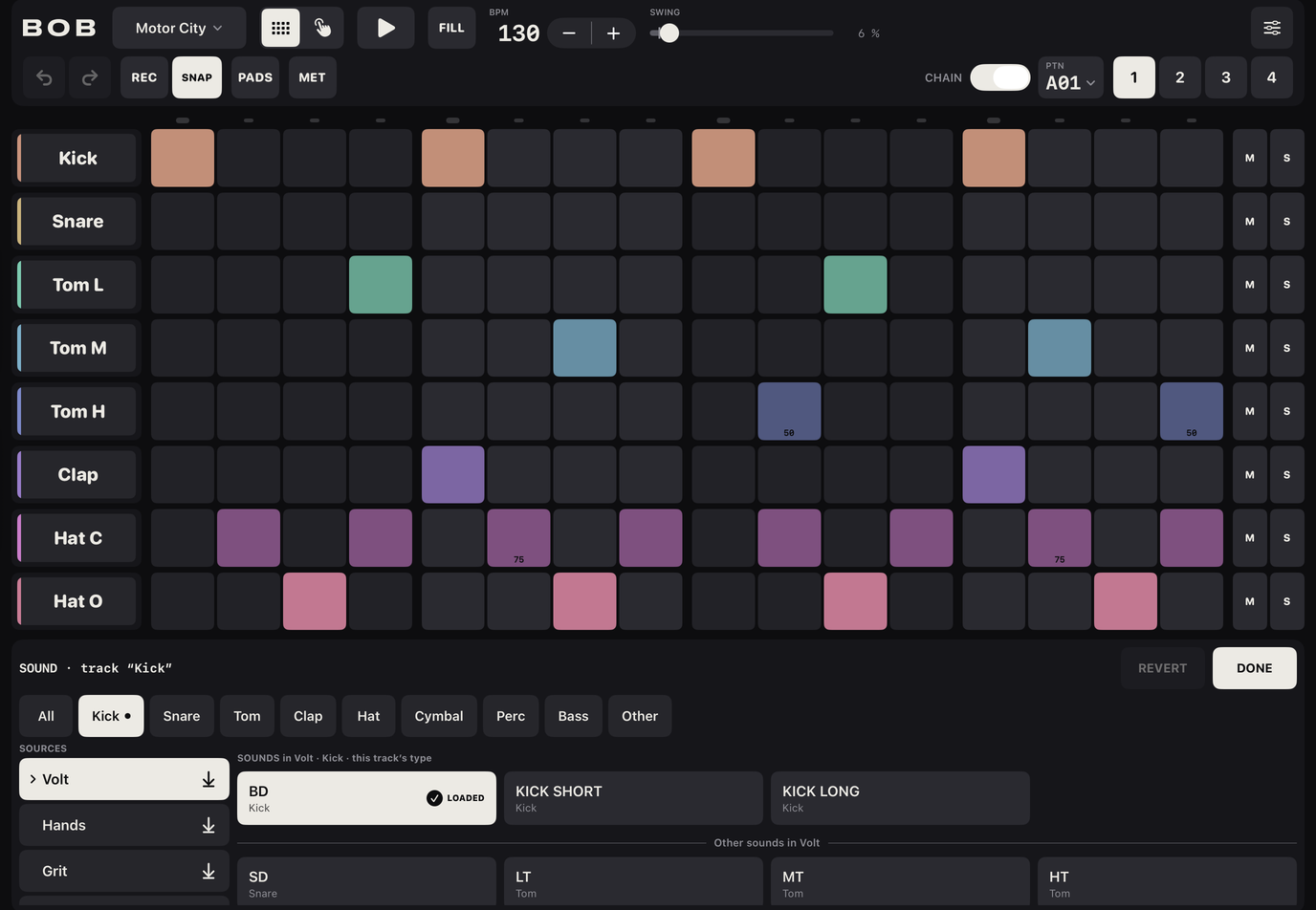
Opening the browser#
- Touch and hold a track key and choose Choose sample….
- Or tap a track key to open its parameter row and tap the sample chip (the track's name over its sample's name, with a chevron).
- With the browser open, tap another track's key to send the browser to that track.
The browser opens in the same drawer space as the pads and the step inspector, with the same height, so the grid does not resize. The grid, the transport and the mute keys stay live. Tap DONE to close it. It also closes when you switch to PERFORM or open another project.
The header reads SOUND · track “name”, with REVERT and DONE at the right.
Browsing#
The SOURCES list has the four bundled kits in order (Volt, Hands, Grit, Dust), then My Samples with a count of your imported samples, then Import. Tap a source to look inside it. When the browser opens it jumps to the kit that holds the track's current sound and scrolls to it.
Above the grid of sounds, a row of type chips filters by what kind of sound it is: All, Kick, Snare, Tom, Clap, Hat, Cymbal, Perc, Bass, Other. Untyped also appears in My Samples while any of your samples has no type. The browser starts filtered to the track's own type (a kick for BD, a hat for CH and OH, and so on) and puts a small dot on that chip. It does not jump to another type while you audition. Matching sounds come first and the rest sit below a divider, Other sounds in the source. A caption above the grid reads like SOUNDS in Volt · Kick.
Auditioning and loading#
Tap a tile to hear it and load it. The sound plays once, at the track's level (never quieter than 15 % of full, so a level-0 track is still audible), and becomes the track's sound at once. Only the sample changes. Level, pitch, decay, pan and the pattern stay. Tapping the loaded tile plays it again.
A tile shows the sound's name and its type, and for imports the length in seconds. The loaded sound has an accent fill and a check mark with LOADED. A sound you have just imported is tagged NEW for about two and a half seconds.
There is no audition inside a host app, because the host owns the audio session. See Bob inside a host.
REVERT#
REVERT puts back the sound the track had when you opened the browser on it. It is dimmed when the track already has that sound. It does not audition. It is gone when you close the browser.
Undo#
A whole visit to the browser for one track is one undo step. One undo takes back everything you tried there.
The four kits#
All bundled sounds were made for Bob. There are 61 in all. Each kit's first eight sounds are its slot sounds, one for each track in order.
| Kit | Character | Sounds |
|---|---|---|
| Volt | The default kit, and the sounds every new project starts on. Eight core drum sounds, plus percussion, bass and longer variations. | 18 |
| Hands | A percussion kit: log drum, congas, rim, snaps and shakers. Made for amapiano, afro house and Brazilian funk. | 14 |
| Grit | Bright, aliased digital drums, for UK garage, Jersey club, dubstep, reggaeton and hard techno. | 14 |
| Dust | Warm, worn lo-fi drums, for boom bap, lo-fi hip-hop and jungle. | 15 |
| Track | Volt | Hands | Grit | Dust |
|---|---|---|---|---|
| 1 BD | BD | KICK | KICK | KICK |
| 2 SD | SD | RIM | SNARE | SNARE |
| 3 LT | LT | LOG DRUM | TOM LOW | TOM LOW |
| 4 MT | MT | CONGA LOW | TOM MID | TOM MID |
| 5 HT | HT | CONGA HIGH | TOM HIGH | TOM HIGH |
| 6 CP | CP | SNAP | CLAP | CLAP |
| 7 CH | CH | SHAKER | HAT | HAT |
| 8 OH | OH | SHAKER LONG | OPEN HAT | OPEN HAT |
| Kit | Extras (with type) |
|---|---|
| Volt | COWBELL, CLAVE, RIM, SHAKER, CONGA (Perc); SUB, LOG DRUM (Bass); KICK SHORT, KICK LONG (Kick); CLAP LONG (Clap) |
| Hands | COWBELL, CLAVE, CONGA SLAP, CONGA MUTE, WOODBLOCK, TRIANGLE (all Perc) |
| Grit | KICK DIST (Kick); SUB (Bass); RIM, STAB (Perc); CHOP, SIREN (Other) |
| Dust | KICK ROUND (Kick); SUB (Bass); SNARE GHOST (Snare); RIM, SHAKER (Perc); RIDE (Cymbal); CRACKLE (Other) |
In the Volt slot sounds, the tile names are the file names in capitals, which is why they read BD, SD, LT and so on. Track keys and pads show friendlier names for them: Kick, Snare, Tom L, Tom M, Tom H, Clap, Hat C, Hat O.
Loading a whole kit#
Each kit row in the sources list has a download-arrow button at its right. Tap it to put that kit's eight slot sounds on all eight tracks at once, as one undo step. Patterns, levels, pitch, decay, mutes and locks stay. A track name that came from its sample follows the new sample. A name you typed yourself stays.
If any track is using one of your imported samples, Bob asks first. The dialog is titled Replace your sample on 1 track too? (or Replace your samples on N tracks too?) and says [Kit] goes on all eight tracks. Patterns, levels and mutes stay. Choose Keep mine to load the kit everywhere except on tracks with your own samples, Replace all to replace them too, or Cancel.
Importing your own samples#
Import lets you put your own recordings on any track. Imported samples live in My Samples and stay in Bob until you delete them.
Importing#
- Open the sound browser and tap Import (the dashed row at the end of the sources, with a plus icon).
- The Files picker opens. Pick one or more audio files.
- Bob converts them in the background. The Import row shows Importing… with a spinner. When it finishes, the browser switches to My Samples with all types shown, and the new samples are tagged NEW for about two and a half seconds.
- Importing does not assign the sample to a track. Tap a tile to load it.
Bob accepts WAV, AIFF, CAF, M4A and MP3 files. If it cannot read a file as audio, or the file is silent, an alert titled Import problem lists each failure on its own line: “[file]” isn't an audio file Bob can read., “[file]” is empty or silent. or Couldn't save “[file]” to the sample library.
What Bob does to each file#
- It converts the file to 44.1 kHz mono. A stereo or multichannel file is summed to mono with a 3 dB reduction.
- It trims silence from the start (below −60 dB).
- It cuts anything longer than 10 seconds, with a 5 ms fade-out at the cut.
- It normalises the peak to −1 dB. To turn this off, touch and hold the Import row and switch off Normalise new imports. It is on by default and Bob remembers your choice on this iPad.
- The sample's name is the file name without its extension.
Types#
Bob guesses a type from the file's name, and from the name of the folder it came from if the file name says nothing. It matches whole words, so "sidekick" is not a kick. Some of the words it knows:
| Type | Words it looks for |
|---|---|
| Hat | hat, hats, hihat, hh, chh, ohh, ch, oh, closedhat, openhat |
| Cymbal | crash, ride, cymbal, cym, china, splash |
| Clap | clap, clp, cp, snap |
| Snare | snare, snr, sn, sd, rimshot |
| Kick | kick, kik, bd, bassdrum, kck |
| Tom | tom, toms, lt, mt, ht, floor |
| Bass | sub, bass |
| Perc | perc, conga, bongo, shaker, cowbell, clave, rim, tamb, tambourine, wood, block, cabasa, guiro, triangle, timbale, agogo, maraca |
| Other | fx, vox, vocal, stab, chord, hit, riser, impact |
The first match in that order wins. If nothing matches, the sample is Untyped.
To change a type, touch and hold the sample's tile in My Samples, choose Change type and pick one. A type you set yourself is never guessed again.
Renaming#
Touch and hold a tile in My Samples and choose Rename…. An alert titled Rename sample asks for a Name, with Save and Cancel. An empty name is ignored. Bundled sounds have no such menu.
Deleting samples#
Touch and hold a tile in My Samples and choose Delete (shown in red). A dialog asks Delete “[name]”? with Delete and Cancel.
Tracks that used the sample keep the reference. If you export a project, any of your samples it uses are packed into the file. If you open a project and one of its samples is not on this iPad, the track plays its default drum sound until you pick another.
Pads#
The pads let you play the eight tracks by hand: to try sounds, to drum a part, or to record it. They are in the drawer in EDIT and on screen all the time in PERFORM.
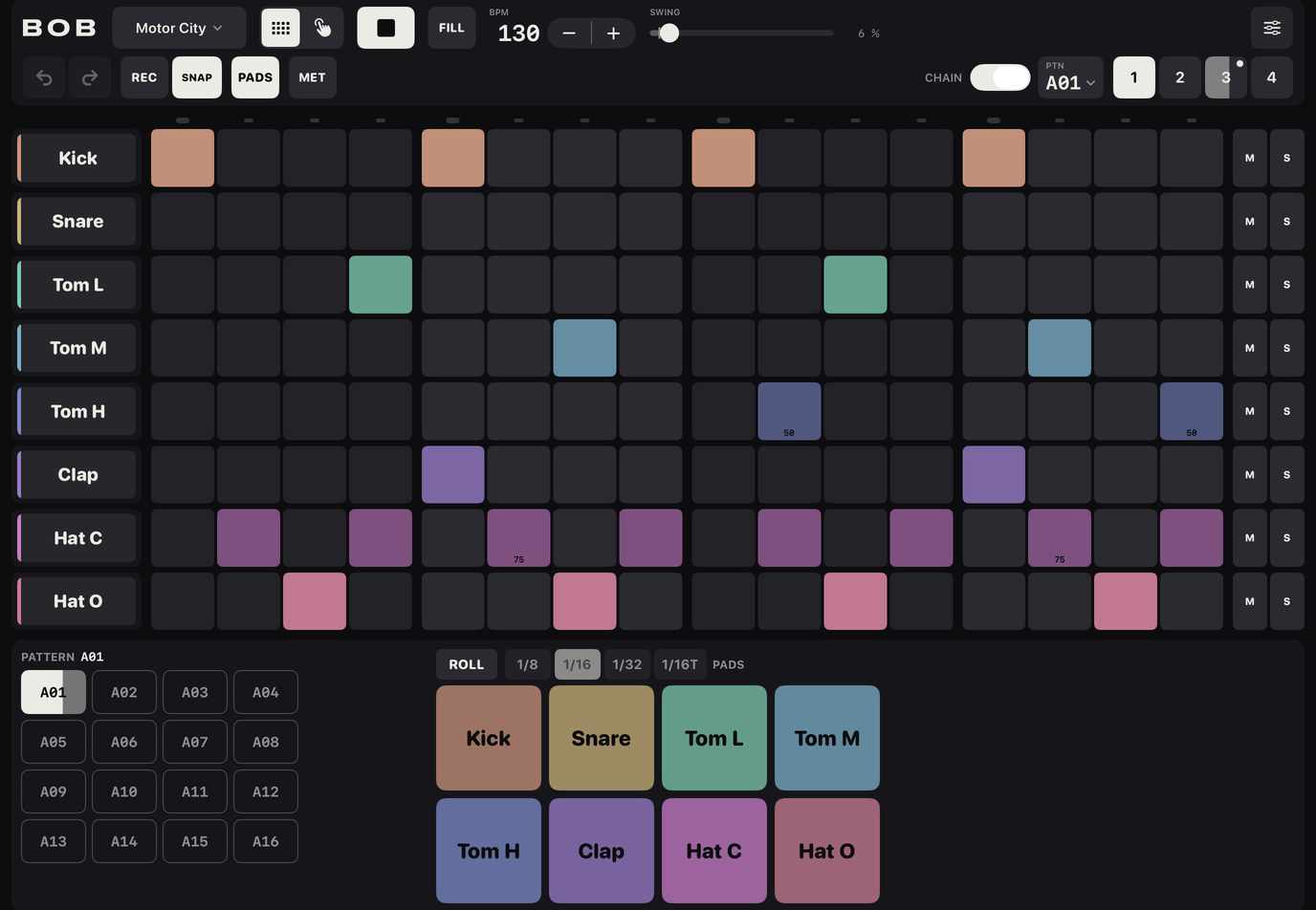
The pads drawer#
Tap PADS in the transport bar. Eight pads sit in two rows of four, in track order: BD SD LT MT on top and HT CP CH OH below. Each pad carries its track's name and, in the Colour theme, its colour. In Mono and Paper the pad looks like a fully lit step.
A header runs above the pads with the title PADS, the hint hit high = hard, low = soft, the recording status and the ROLL keys. In a narrow space the hint goes first, then the title.
In the wide and tall layouts the pattern block shares the drawer. In the small layout the pads are wide and flat and the patterns are behind PAT.
Velocity by touch height#
Where you touch the pad sets how hard it plays. The top tenth of the pad is velocity 127 and the bottom tenth is 20, with a smooth slope between. Bob does not read how hard you press, only where. Several pads can be held at once.
Pad light#
A pad lights the instant you touch it, brighter for a harder hit, and fades over about 0.18 seconds after you let go. The pads also flash when a roll repeats and when a MIDI note plays them.
Two badges can appear on a pad: a filled M at the top left when the track is muted, and a speaker-with-slash at the top right when its level is 0. In both cases the pad still plays.
Pads and the sequence#
- Pads ignore mute and solo: a muted track's pad still sounds, chokes and records.
- Pads ignore parameter locks.
- A closed-hat hit cuts a ringing open hat, whether it comes from a pad or from a step.
ROLL#
ROLL repeats a pad while you hold it, for hat rolls and drum fills.
- Tap ROLL to turn it on. It lights. It is always off when you open Bob.
- Choose a rate with the keys next to it: 1/8, 1/16, 1/32 or 1/16T. The default is 1/16, and Bob remembers your choice on this iPad. The rate keys are dimmed while ROLL is off, but you can still set them.
- Hold a pad. It sounds at once, then repeats at the rate until you lift your finger.
| Key | Repeats every |
|---|---|
| 1/8 | 2 steps (an eighth note) |
| 1/16 | 1 step |
| 1/32 | half a step |
| 1/16T | two thirds of a step (sixteenth-note triplets) |
- You can roll several pads at once. Changing the rate affects every pad that is rolling.
- Slide to change velocity. While a pad is rolling, move your finger up or down on it. The repeats that follow use the new velocity, with the same high-is-hard mapping. Sliding off a pad never triggers another pad.
- When the music is playing, repeats lock onto the beat grid. The first repeat comes one interval after your touch and later ones settle onto the grid within a few repeats. When it is stopped, repeats run at the current tempo from your first touch. Swing and nudge do not apply to rolls.
- Stopping the transport ends all rolls.
- Rolls ignore mute and solo, like any pad hit.
- With recording on, every repeat is recorded. See Recording.
The ROLL keys sit at the left end of the pads header by default, or at the right if you set Pattern controls to Right in the settings.
Playing pads from MIDI#
A MIDI note whose number matches a track's note plays that track like a pad hit. See MIDI in.
Recording#
Recording writes the pad hits you play into the pattern, so you can drum a part instead of tapping it in.

REC#
- Tap REC. With the music stopped it is armed: a red outline and red text. While the pads drawer is open the header says REC ARMED (press play).
- Press play. The key turns solid red and the header says RECORDING. In tight spaces the header shortens to REC or ARMED.
- Play the pads. Each hit is written into the pattern.
- Tap REC again to stop recording. The music keeps playing.
Hits are written only while REC is on and the music is playing. An armed key with the music stopped records nothing.
- A hit goes onto the step that was playing nearest to your touch, once Bob has corrected for the output latency of your headphones or speaker. If it falls more than half a step from any step, it is dropped.
- It turns that step on and sets its velocity to the pad's velocity. If the step already had a chance, condition, flam or parameter locks, they are kept.
- Hits record onto whichever page is playing. On a track shorter than 64 steps they land on the step the track is currently on.
- Recording onto a muted track works. The new step stays silent in playback until you unmute the track.
- Rolls record every repeat. Repeats that fold onto the same step keep the loudest.
When two hits land on one step#
If two hits land on the same step in one pass, the louder one is kept. Flams and quick doubles within a step are not captured. Use the step inspector to add a flam or ratchet afterwards.
Undo#
A whole recording pass, from arming to stopping, is one undo step. Undo and redo are switched off while the pass runs. When you stop, tap undo once to wipe the pass.
SNAP#
SNAP sits next to REC and decides whether recorded hits are tidied.
- SNAP on (lit, the default). Each hit goes exactly onto its step. The step's existing nudge is left alone.
- SNAP off. Bob keeps your actual timing as a nudge on the step, in the range −23 to +23 (one unit is 1/48 of a sixteenth). Recorded rolls always get a nudge of 0.
SNAP is a setting for this iPad and is not stored in the project. In a narrow small layout the SNAP key can be hidden to leave room; REC always stays.
Tighten#
If you record with SNAP off and the take is too loose, select the steps and press Tighten in the step inspector. Each press halves their nudge. See Nudge and Tighten.
Metronome#
The metronome gives you a click to play and record against.
- Tap MET to switch it on or off. It is lit when on.
- Touch and hold MET for 0.4 seconds to open a popover titled METRONOME LEVEL with a fader from 0 to 100. The default is 80. Double-tap the fader to return to 80. In the small layout the level fader sits next to the key and is greyed out while the metronome is off.
The click falls on every beat (quarter note). The first beat of the bar is louder and an octave higher; the other beats play at 0.6 of the level. The click ignores solo and goes to the main output only, so in a host it is not on a separate track output. It is not sent as MIDI.
The metronome's state and level are not saved in the project, are not part of undo, and reset when you open Bob.
Patterns#
A project holds 16 patterns, so you can keep a verse, a chorus, a break and variations, and move between them as the music plays.
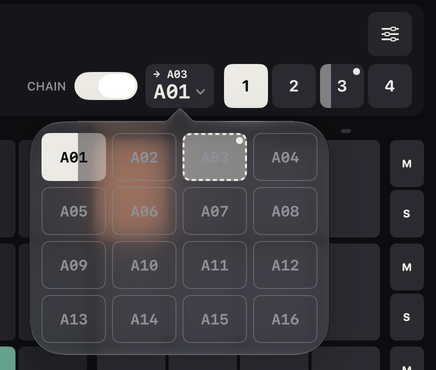
Slots#
The slots are named A01 to A16. (The letter is reserved for more banks.) Each slot holds the steps of all eight tracks across four pages, plus each track's length and swing. Everything else belongs to the whole project: sounds, levels, pitch, decay, mutes, tempo, global swing and CHAIN. A new project starts on A01. The demos put their groove in A01 and leave the rest empty.
Edits go to the slot you are on. A slot with no step switched on counts as empty.
Where the slots are#
- PTN readout in the transport bar (wide and tall layouts). Tap it for a popover with the 4 × 4 block of slots.
- Pattern block in the pads drawer, with a header such as PATTERN A07 next A09 · queued. It is visible while the pads drawer is open.
- Small layout: tap PAT to open a row with the project button, a PATTERN caption and the slots. If all sixteen do not fit, the row shows eight at a time with a toggle labelled A09–16 or A01–08 that switches halves. The toggle gets an accent outline when the current or queued slot is in the half you cannot see.
- PERFORM has its own block with bigger keys. See Pattern keys.
What a slot looks like#
- Empty: an outline with a dim label.
- Has content: a dim fill.
- Current: a solid accent fill when stopped. While playing, a bar fills from the left, one step's worth for each sixteenth (or one sixty-fourth with CHAIN on), and is full on the last step.
- Queued: a dashed accent outline, a small dot at the top right and a tint that swells on every beat. Nothing blinks.
Switching#
- Stopped. A tap switches at once.
- Playing, one tap on another slot queues it. It takes over at the end of the page that is playing, or at the end of the whole 64 steps with CHAIN on. Tapping another slot replaces the queue. Tapping the current slot cancels it.
- Playing, double-tap (two taps on the same slot within 0.35 seconds) jumps. The new pattern takes over on the next step and keeps the playhead's step position, so the groove carries on. A jump replaces any queued switch and ends any page or step loop. It does not restart the loop counts that conditions like 1st and A:B use, so they carry over. Stopped, or on the current slot, a double-tap just selects.
When a queued switch lands, every track starts again from its first step in the new pattern. Pressing stop with a switch queued applies it at once. Slot selection is not part of undo.
Copy, Paste and Clear#
Touch and hold a slot for 0.3 seconds. The slots are replaced in place by a small panel for that slot, with the slot name (and empty if it is empty) and these buttons:
- Copy copies the slot to a clipboard shared by all slots. Dimmed for an empty slot.
- Paste puts the clipboard into this slot. Dimmed when the clipboard is empty.
- Clear (red) empties the slot. Dimmed for an empty slot.
- Cancel closes the panel.
There are no confirmation dialogs. After a Clear, or a Paste over a slot that has content, the panel becomes a notice: Cleared A06 or Pasted over A06, with Undo and Done buttons. It closes itself after about 4 seconds without a touch.
Undo in the notice reverses that clear or paste and nothing else. It is hidden if you have recorded or edited since. It works even during a recording pass, when the main undo key is off. Each clear and paste is also an entry in the normal undo list.
The Left/Right setting#
Settings has a Pattern controls switch, Left or Right. It decides which side of the pads drawer holds the pattern block, and which end of the pads header holds the ROLL keys. The grid and transport never mirror. It is a setting for this iPad. See Settings.
PERFORM#
PERFORM is the view for playing a pattern live: switch patterns, mute tracks on the bar, loop a step, drum on the pads and punch effects over the whole mix. Every key is large and nothing scrolls.
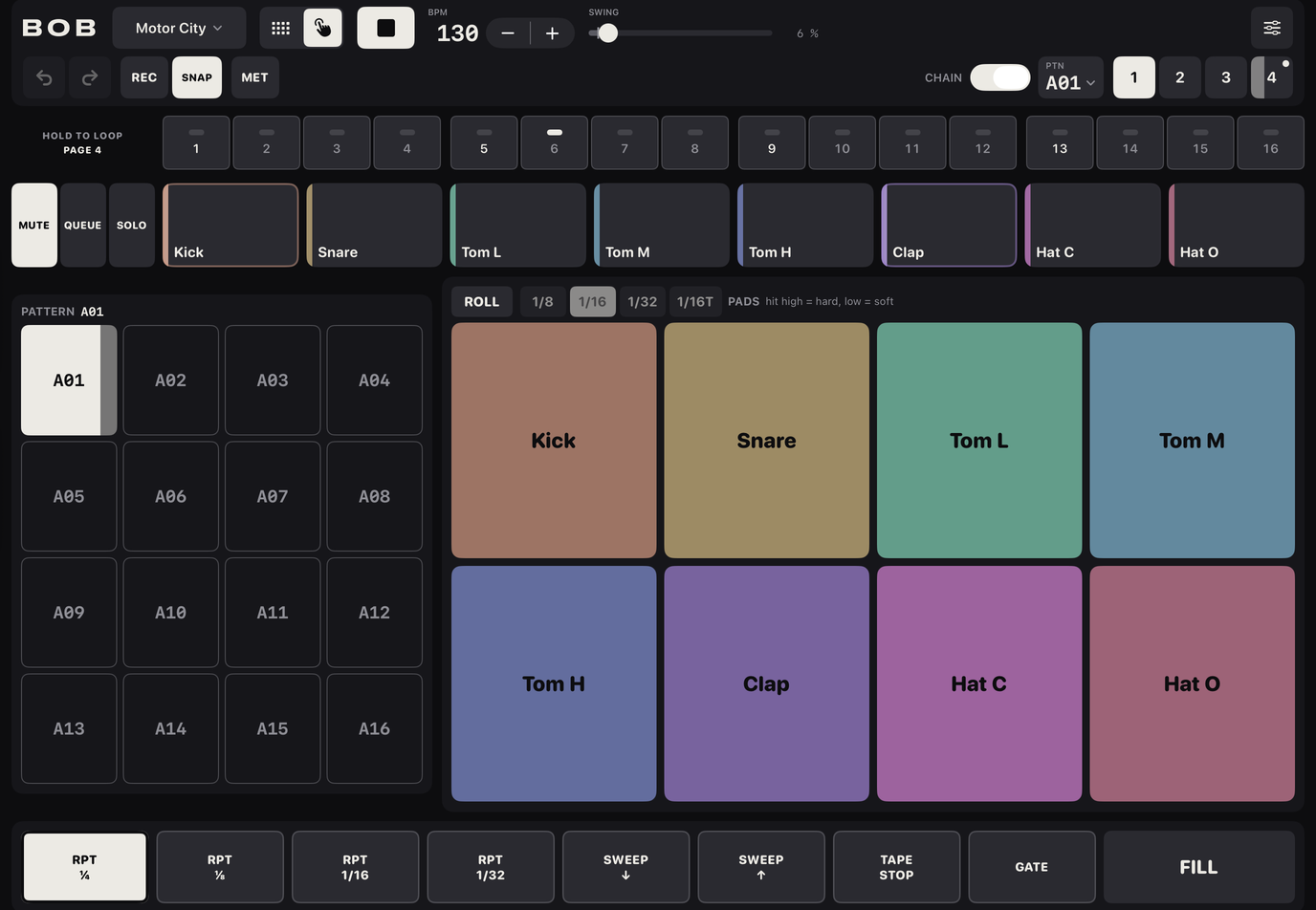
Switch to it with the right-hand segment (the tapping hand) of the EDIT | PERFORM switch. Playback is not interrupted. The transport bar stays, minus PADS, PAT and its FILL key, which PERFORM has on its own. Leaving PERFORM releases every held effect key.
Layout#
From the top of the screen:
- Loop strip: sixteen step keys.
- Mute strip: the MUTE | QUEUE | SOLO switch and eight track keys.
- The pads, the pattern keys and the FX block with the punch-in effects and a wide FILL key. Their arrangement depends on the window:
- Wide: pattern keys and pads side by side, with the FX keys in a single row beneath and FILL at the end.
- Tall: the pads across the top, then pattern keys and the FX block side by side.
- Small (and tall windows under 620 pt high): one block at a time. A three-way switch under the mute strip chooses PADS, PTN or FX.
The Left/Right setting under Pattern controls in Settings also decides which side the pattern keys take.
Mute, queue and solo#
The eight track keys carry the track's colour as a bar at the left and its name at the bottom. The switch at the left of the strip decides what a tap on them does. Tap a segment to change mode; it stays until you change it, and Bob remembers it on this iPad. The default is MUTE.
| Mode | A tap on a track key |
|---|---|
| MUTE | Mutes or unmutes the track at once. |
| QUEUE | Queues a mute or unmute for the next bar. Tap again before it lands to cancel. With the music stopped there is no bar, so it takes effect at once. |
| SOLO | Solos or unsolos the track at once. |
A track key's look tells you its state, whichever mode is selected:
- Muted: the key is at 40 % with an M badge at the top right.
- Silenced by another track's solo: 40 %, no badge.
- Soloed: an S badge, with the colour bar at full brightness. A track that is muted and soloed stays silent.
- Level 0: a speaker-with-slash and LVL 0 at the top left.
- The key flashes briefly each time its track plays a step.
As in EDIT, mute and solo silence the sequence only. A muted track's pad still sounds.
Queued mutes landing on the bar#
A queued change lands at the start of the next bar, which is every 16 steps. It does not wait for the end of a 64-step chain, and a loop does not move it. All queued changes land together on the same step, before its hits are scheduled, so the first step of the bar is already muted or unmuted. Pressing stop makes every queued change land at once. If the audio restarts because of a route change or an interruption, the queue is dropped without being applied.
A key waiting to change is easy to spot because it stands out at full brightness, even if its track is muted:
- a steady dashed outline in the accent colour;
- a tint of the track's colour that pulses on every beat;
- a fill that grows from the left toward the bar line;
- a badge: a dashed, empty M for a queued mute; a filled M in a dashed ring for a queued unmute.
In EDIT, the track's M key shows a dashed outline while its change is queued.
Pattern keys#
The 4 × 4 block of A01 to A16 works exactly as the pattern slots in EDIT: a tap queues a switch, a double-tap jumps, a touch and hold opens Copy, Paste and Clear. See Switching. When the panel is tall enough the block has a header: PATTERN, the current slot, and next A09 · queued while a switch is waiting.
Pads#
The same eight pads and ROLL keys as the EDIT drawer: velocity by touch height, 1/8, 1/16, 1/32 and 1/16T rolls, REC. See Pads.
FILL#
The wide FILL key in the FX block is the same control as the transport's: hold it, or double-tap to latch. See FILL.
Punch-in effects#
The eight effect keys let you change the sound of the whole mix for as long as you hold them. Press and hold a key and the effect starts. Let go and it stops. You can hold several keys, and pads, at the same time. A finger that slides off a key keeps holding it until you lift. In the tall and small layouts the block has the header FX with the word hold.
The effects act on the master mix, after all the tracks are summed. They are not saved with the project and are not part of undo.
| Key | What it does | Finger height |
|---|---|---|
| RPT ¼ | Beat repeat: captures one quarter note of the mix and loops it until you let go. | No effect. |
| RPT ⅛ | Beat repeat on an eighth note. | No effect. |
| RPT 1/16 | Beat repeat on a sixteenth note. | No effect. |
| RPT 1/32 | Beat repeat on a thirty-second note. | No effect. |
| SWEEP ↓ | A low-pass filter closes. The cutoff glides down from 18 kHz over an eighth note, then follows your finger. | Bottom of the key: no change. Top: down to 250 Hz. |
| SWEEP ↑ | A high-pass filter opens. The cutoff glides up from 30 Hz over an eighth note, then follows your finger. | Bottom of the key: no change. Top: up to 4 kHz. |
| TAPE STOP | The mix slows and drops in pitch like a tape machine stopping, over one beat, then falls silent while you hold. | No effect. |
| GATE | Chops the mix in eighth notes: open on the first sixteenth of each pair, closed on the second. | Bottom of the key: no change. Top: closed parts fully silent. |
Amount by finger height#
The two sweeps and the gate have an amount, set by how high your finger is on the key: nothing at the bottom edge, full at the top edge, in a smooth slope. A line rises from the bottom of the key to your finger and a percentage replaces the label, for example 65%. The amount follows your finger as you move it. The beat repeats and the tape stop have no amount.
Timing#
- A press and a release both land on the next sixteenth note, in time. A quick tap therefore still sounds for one step.
- The exception is TAPE STOP: pressing it engages at once, but releasing it waits for the next sixteenth.
- While the music is stopped, effects start and stop at once.
- Repeat length, sweep time and tape-stop time are fixed when you press the key. A tempo change while you hold takes effect on the next press.
- With several repeat keys held, the most recently pressed wins. Let go of it and the next one takes over.
A held key shows an accent outline straight away. It fills solid once the effect has actually started.
Page and step loops#
The loop strip at the top lets you grab a step or a group of steps and repeat them while you hold. It does not change the pattern.
The strip has a left column with the caption HOLD TO LOOP and, while playing, PAGE n for the page that is playing, then sixteen keys numbered 1 to 16 in groups of four. The keys for beats 1, 5, 9 and 13 are brighter. A small lamp on each key shows the playing step. On a narrow window the keys wrap into two rows of eight.
- Hold one key to loop that single step: it restarts each time, like a stutter.
- Hold two or more keys to loop the range from the lowest to the highest key held. A range loop stays in time with the bar, so the rhythm is not broken when you press or release. In the two-row layout a range can cross the break: holding 7 and 10 loops 7 to 10.
- Lift all fingers and playback rejoins where it would have been.
The loop is on the page that was playing when you touched down. It starts and ends on the next sixteenth, which can be up to a step after your touch. Keys under your finger get an outline at once and the looped keys fill with the accent colour when the loop is live. Short tracks keep their own cycle, conditions and chance continue as normal, and recording still writes to the step that is playing.
A loop ends by itself when you stop, when a queued pattern or page change lands, or when you double-tap a pattern key. The keys are inactive while the music is stopped.
Projects, demos and files#
A project is everything you are working on: patterns, sounds, tempo and settings. Bob saves it for you and keeps as many as you like.
Autosave#
There is no Save button. Bob writes your project one second after your last edit, and also when you switch projects or the app goes to the background. When you open Bob it reopens the project you were on. If it cannot, it opens the most recent one it can read, or on a first launch a copy of the Motor City demo. Unreadable project files are skipped.
Projects are stored inside Bob, on this iPad. The Projects sheet says it plainly: Projects are stored in Bob. Export the ones you want to keep.
A project holds its name, tempo, swing, CHAIN, the eight tracks (sound, level, pitch, decay, mute, solo, name, colour, MIDI note, output), the 16 patterns with their steps, lengths and swings, the current pattern slot and the MIDI out channel. It does not hold the theme, EDIT or PERFORM, SNAP, the Left/Right setting, the tips, the metronome, roll settings or the undo history.
The Projects sheet#
Tap the project name at the left of the transport bar. The sheet is titled Projects and has New and Import… at the left and Done at the right. Your projects are listed most recently saved first, with a check mark on the open one. Under them is a Demos section. Tap a project to open it; Bob saves the current one first, stops playback and clears undo.
Each project row has a menu (the circled dots) with four items:
- Rename: an alert, Rename project, with a Name field and Cancel / Rename. Spaces at the ends are trimmed and an empty name does nothing.
- Duplicate: makes a copy called [name] copy, then [name] copy 2 and so on. It stays in the list and does not open.
- Export…: see below.
- Delete (red): asks Delete this project? A project that is not open says This can't be undone. If it is the open one, Bob says it will switch to the next most recent project, by name. If it is your only project, Bob says This is your only project. Bob will start a new empty one.
New saves the current project and opens a blank one called Untitled: 100 BPM, no swing, CHAIN off, sixteen empty patterns and the Volt kit.
Demos#
The Demos section holds fifteen grooves to learn from, each a complete, editable project. Tap one to get a fresh copy named after it (Motor City, then Motor City 2 and so on). The original stays as it is. Each demo plays the groove in A01 with CHAIN on and a fill on page 4. Every demo plays on Bob's own bundled sounds, so nothing needs importing.
| Name | Genre | BPM | Swing |
|---|---|---|---|
| Motor City | Detroit techno | 130 | 6 % |
| Electro | Electro | 118 | 0 % |
| House | House | 124 | 18 % |
| Boom Bap | Boom bap | 90 | 55 % |
| Pirate Signal | UK garage | 132 | 50 % |
| Highveld | Afro house | 122 | 12 % |
| Yanos | Amapiano | 113 | 10 % |
| Paredão | Brazilian funk | 130 | 0 % |
| Brick City | Jersey club | 140 | 0 % |
| Perreo | Reggaeton | 95 | 0 % |
| Schranz | Hard techno | 150 | 0 % |
| Zone 6 | Trap | 140 | 0 % |
| Junglist | Jungle / drum & bass | 174 | 0 % |
| Croydon | Dubstep | 140 | 30 % |
| Bluff City | Phonk | 130 | 0 % |
Swing is on the scale of the SWING fader. Inside a host app there is no Projects sheet and so no demos.
Export and import (.bobproject)#
A .bobproject file is a single file that carries a project to another iPad, to a friend, or to a backup.
- Export. Use the row's menu and Export…. Bob saves the project, builds the file, and opens the iOS share sheet (AirDrop, Save to Files and so on). The file is named after the project, for example
Motor City.bobproject. - What is inside. The whole project, plus every imported sample its tracks use, with no size limit. Bundled sounds are not copied. They are part of every Bob.
- Import. Tap Import… in the Projects sheet and pick a
.bobprojectfile. You can also open one from Files, AirDrop or another app and Bob will take it. It always becomes a new project and opens at once. If you already have one with that name, the new one is called [name] (imported), then [name] (imported) 2. Your samples are installed if you do not already have them.
If a file cannot be opened, an alert shows one of these messages: This isn't a Bob project file., This project was made with a newer version of Bob. (update the app and try again), Bob couldn't pack this project into a file. or Bob couldn't read this project. The alert is titled Couldn't finish inside the sheet, or Couldn't open the project if you opened the file from outside Bob.
Older projects open normally. Out-of-range values are brought back into range.
Undo and redo#
Undo takes back your last change, so you can try things freely. The two keys are in the transport bar.
Using it#
- Tap undo (curved arrow, left). A label appears under the key for about a second: Undid [what].
- Tap redo (curved arrow, right) to put it back: Redid [what].
- Touch and hold either key for 0.4 seconds to read what it would do, for example Undo nudge Snare, without doing it.
The keys are dimmed when there is nothing to undo or redo. They are switched off during a recording pass. A new edit clears whatever was waiting to be redone.
What counts as one step#
One gesture is one step. Dragging a fader from touch to lift is one. So is a clear, a paste, a Euclidean commit, loading a kit, rubbing across a MIDI note, and a whole recording pass from arming to stopping. A visit to the sound browser for one track is one step, however many sounds you tried. An edit that leaves things as they were adds no step.
Undo covers the steps of every pattern slot you touched and the eight tracks' settings: level, pitch, decay, name, colour, sample, MIDI note and output. It also covers step edits, nudges, locks, clearing, painting, track length and swing per track, and the pattern Clear and Paste.
Limits#
- Depth: 50 steps. The oldest is dropped first.
- Not saved: the history lives in memory. It is cleared when you open, create, import or delete into a different project, and when you quit Bob.
- Not covered: mute and solo, tempo, the global SWING fader, play and stop, FILL, the punch-in effects, which pattern slot is selected, the theme, the metronome, and EDIT or PERFORM.
Undo restores mutes as they are now, not as they were. If you undo past a track's settings, its mute and solo stay as you left them.
MIDI#
MIDI lets a keyboard or pad controller play Bob, and lets Bob drive other instruments in a host. Bob sends and receives notes only.
Channel and notes#
Each track has a MIDI note, and the project has one MIDI channel. Both are saved with the project and set in Settings.
- Out channel: 1 to 16, default 10 (the General MIDI drum channel). Use the − and + keys. The row's caption says In: any channel, because Bob listens on every channel.
- Note per track: 0 to 127, shown as a number and a name, for example 36 C1. Note 60 is C3. Use the − and + keys, or drag sideways on the number to scrub it, one note for every 10 pt, with a tick for each. A tap or a scrub is one undo step.
| Track | Note | Shown as |
|---|---|---|
| 1 BD | 36 | 36 C1 |
| 2 SD | 38 | 38 D1 |
| 3 LT | 41 | 41 F1 |
| 4 MT | 45 | 45 A1 |
| 5 HT | 48 | 48 C2 |
| 6 CP | 39 | 39 D#1 |
| 7 CH | 42 | 42 F#1 |
| 8 OH | 46 | 46 A#1 |
MIDI in#
Play Bob's tracks from a controller.
- Standalone app. Bob connects to every MIDI source it can see: USB, paired Bluetooth controllers and other apps. It follows plugging and unplugging. Settings shows MIDI in: none, MIDI in: 1 device or MIDI in: N devices.
- In a host. MIDI comes from the host.
Only note-on messages with a velocity above 0 do anything. A note plays every track whose note matches, as a pad hit with the incoming velocity (1 to 127). The track's level, pitch and decay apply, and a closed hat cuts an open hat. Mute and solo are ignored, like pads. If REC is armed and playing, the note is recorded like a pad hit, and SNAP applies. The pad lights. Notes that match no track, note-offs, velocity-0 note-ons and controllers (CC) are ignored. Bob does not echo incoming notes to its MIDI out.
MIDI out#
Every hit that sounds also sends a MIDI note, so Bob can play a synth or a drum instrument in a host.
- Where it is available. MIDI out is a feature of Bob as a plug-in in a host that accepts MIDI from plug-ins. Bob appears with one MIDI output named Bob that carries all eight tracks. The standalone app does not send MIDI out.
- What is sent. A note-on for every hit that sounds: sequenced steps, pad hits, roll repeats, the sub-hits of a ratchet and both hits of a flam, on the project's channel and the track's note.
- What is not sent. Steps that fail their condition or chance, sequenced steps on a muted track, tracks silenced by a solo, and the metronome. A muted track's pad does send.
- Velocity is the step's, pad's or roll's velocity (1 to 127), with ratchet ramps applied. A flam's grace note is sent quieter, to match its sound. Track level and level locks do not change MIDI velocity.
- Gate length: a 32nd note (half a step), never shorter than 10 milliseconds. Each note-on ends any note still sounding on the same note and channel first, so ratchets and flams never overlap. Stopping sends note-offs for everything that is sounding.
Bob inside a host (AUv3)#
Bob is also an AUv3 instrument plug-in. You can load it inside a music app that hosts such plug-ins, so it runs in time with your other tracks and its sound lands in the host's mixer. It shows the same screen as the app.
Finding it#
Install Bob on the iPad, then in your host add an instrument (a "music device" in some hosts) and choose Bob. Hosts list it as an instrument named Bob from Conor Griffin, tagged Drums and Sampler. Bob opens at 1024 × 640 pt by default and adjusts its layout to whatever space the host gives it (see Wide, tall and small layouts). Bob has no presets of its own: the host's saved session is the preset.
Host transport#
Inside a host, the host is in charge of time.
- Bob's play key is replaced by a non-tappable HOST key that lights while the host is playing. Press play in the host. Until it has played once, a note over the grid says Press play in your host.
- The tempo shows as BPM HOST and the number follows the host's tempo. It is read-only. It shows -- until the host provides a tempo.
- The step clock follows the host's position, so locating or looping in the host moves Bob with it. When the host stops, queued mutes land at once and loops end.
Everything else still works: both EDIT and PERFORM, the pads, recording, the inspector, swing, FILL and the punch-in keys. Pad hits are heard at once, as in the app, and host MIDI notes play pads.
What is not available in a host#
- The Projects sheet. The project name is just a label (the host's session name, or Bob), so there are no demos and no import. Trying to import says Open the Bob app to import a project.
- The play key and the tempo stepper (see above), and the BOB wordmark.
- Auditioning in the sound browser. Tapping a tile still loads the sound.
- The first-run tips, the MIDI in line in Settings, and the wireless-output note.
- If you close Bob's window, recording is disarmed so MIDI cannot write steps with nothing on screen to show them.
What the host saves#
When you save the host's session, Bob stores the whole project inside it: name, tempo, swing, CHAIN, the eight tracks with their sounds and settings, MIDI notes and outputs, the 16 patterns and the current pattern. When you reopen the session the project restores even before you open Bob's window, so it plays correctly straight away. The theme, SNAP and other per-iPad settings are not part of it.
Your own samples in a session#
Bundled kits ship inside Bob and are never copied into a session. Samples you imported, and that your tracks use, are copied in, but with limits: each sample up to 2 MB, and up to 16 MB in total for the session. A bigger sample, or one that does not fit in the total, is saved by reference only. When Bob restores a track it looks first in the sample library on this iPad, then in the copies saved in the session, and otherwise falls back to the track's default drum sound and shows the ? badge on its key.
A sample that was left out is found again as long as it is still in this iPad's library. See Troubleshooting.
Multi-out#
Multi-out sends individual tracks to their own channels in the host's mixer, so you can add effects or levels to a drum on its own. It exists only in the plug-in; the app has one stereo output.
| Bus | Name | Carries |
|---|---|---|
| 0 | MAIN | The mix and the metronome, with the punch-in effects applied |
| 1 | BD | Track 1 when routed to its own output |
| 2 | SD | Track 2 |
| 3 | LT | Track 3 |
| 4 | MT | Track 4 |
| 5 | HT | Track 5 |
| 6 | CP | Track 6 |
| 7 | CH | Track 7 |
| 8 | OH | Track 8 |
Each track has a three-way switch under Outputs in Settings (shown in a host only):
| Setting | The track plays on |
|---|---|
| MAIN | The MAIN bus only. This is the default. |
| OWN | Its own bus only, and is taken off MAIN. |
| BOTH | Its own bus and MAIN. |
- A bus carries the track after its level, pan, pitch, decay and choke, and before the punch-in effects. A BOTH track on MAIN is under the effects.
- The punch-in effects and the metronome act on MAIN only.
- If the host does not connect a track's own bus, the track plays on MAIN so it never goes silent. Within a moment of the host connecting or disconnecting a bus, the track moves.
- Changing a track's output is an undo step.
Automatable parameters#
The host can automate these. Parameters are grouped Global, Punch-in FX and one group for each track, named for the track's slot: Bass Drum, Snare, Low Tom, Mid Tom, High Tom, Clap, Closed Hat and Open Hat. A change applies at the start of the next audio buffer.
| Name in the host | Range | Default |
|---|---|---|
| Swing | 0 to 0.5 (0.5 is 100 % on the Bob fader) | 0 |
| Fill | off / on | off |
| Repeat 1/4, 1/8, 1/16, 1/32 | off / on, each | off |
| Filter sweep down, Filter sweep up | off / on, each | off |
| Tape stop | off / on | off |
| Gate | off / on | off |
| Filter sweep down amount, Filter sweep up amount, Gate amount | 0 to 1 | 1 |
| [Track] Level | 0 to 1 | 0.8 |
| [Track] Pitch | −12 to +12 semitones | 0 |
| [Track] Decay | 0 to 1 (1 plays the whole sample) | 1 (Bass Drum 0.35) |
| [Track] Pan | −1 (left) to +1 (right) | 0 |
| [Track] Mute | off / on | off |
For example, Bass Drum Level or Closed Hat Mute. Track pan has no control on Bob's screen but can be automated here. Not automatable: pattern selection, tempo, CHAIN, solo, queued mutes, loops, MIDI notes and outputs. When the host plays back automation, Bob's screen follows it.
Settings#
Settings holds the choices that belong to you and your iPad rather than to one project. Tap the sliders icon at the far right of the transport bar to open it. It lists the items below from top to bottom.
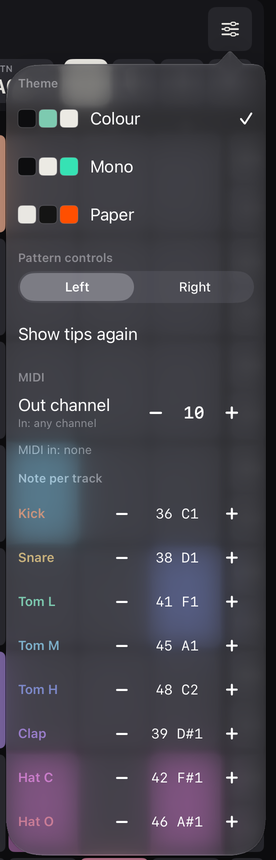
Theme#
Three rows, each with three small colour swatches and a name. A check mark shows the one in use. Tap one to apply it at once. It is a setting for this iPad and is not saved in the project.
| Theme | Look |
|---|---|
| Colour | The default. Dark, with a different muted colour for each of the eight tracks (terracotta sand mint teal-blue blue violet pink rose). Highlights such as the play key and lit keys are off-white. |
| Mono | Dark, with no track colours. Lit steps are off-white and highlights are a mint green. |
| Paper | A light theme on a warm off-white. Lit steps are near-black and highlights are orange. |
In every theme a step's brightness shows its velocity, and the REC key is always the same red. The per-track colour swatch in the parameter row appears in the Colour theme only.
Pattern controls#
A two-way switch, Left or Right (default Left). It puts the pattern block, and the ROLL keys, on that side of the pads drawer and of PERFORM. Only the drawer mirrors; the grid and the transport do not.
Show tips again#
Tap this row to bring back the pulse around the play key and the three first-run tips. There is no confirmation. The tips are described next.
First-run tips#
The first time you use Bob, a slow ring pulses around the play key until you first press play. Then three speech-bubble tips appear one at a time, each with a Got it button:
- Tap a step to turn it on or off. It points at the grid.
- Open PADS to play the sounds live. It points at PADS.
- Press and hold a step to give it its own pitch, chance or condition. It points at the grid.
Tap Got it or just do what the tip says (turn on a step, open the pads, open the inspector) and it goes away. Tips appear in EDIT only, never in the small layout or in a host, and wait while a sheet, popover, the inspector or the sound browser is open. They are remembered on this iPad. If you already had projects in Bob when the tips arrived, they are marked as done from the start.
MIDI#
The Out channel stepper (1 to 16, default 10) with the caption In: any channel. In the standalone app, a line shows MIDI in: none, MIDI in: 1 device or MIDI in: N devices. The channel is part of the project. See MIDI.
Output line#
While your audio output is wireless (Bluetooth or AirPlay), Settings shows Output: [device name] · wireless, pads lag. It is always there while the output is wireless. See Headphones and latency.
Note per track#
One row per track: its name, a − key, the MIDI note, and a + key. See Channel and notes.
Outputs (hosts only)#
The MAIN | OWN | BOTH switches for each track, under the note OWN takes a track off MAIN and onto its own output (BD ... OH); BOTH keeps it on MAIN too. If the host does not connect that output, the track plays on MAIN. Punch-in FX act on MAIN only. See Multi-out.
In the small layout and inside a host the popover is wider, with the track rows in two columns.
Headphones and latency#
Latency is the delay between touching a pad and hearing it. Wired headphones and the iPad's own speakers keep it short. Wireless headphones do not.
The wireless note#
When Bob sees that the output is wireless, it shows a small bubble under the transport bar:
Wireless headphones add a delay to the pads. Wired or USB-C headphones play in time.
For AirPlay it says AirPlay adds a delay to the pads. Wired or USB-C headphones play in time.
- It appears once for each wireless device, the first time Bob sees it (and at launch, if one is already connected). A different device shows it once more. Tapping the bubble hides it; otherwise it hides after 6 seconds. "Show tips again" does not bring it back.
- It waits until any first-run tips are done, and does not appear over the FILL hint. Pressing FILL while it shows removes it.
- Bob decides by the type of connection (Bluetooth or AirPlay), not by measuring the delay. It does not show in a host.
- While the output is wireless, Settings shows Output: [device] · wireless, pads lag.
Why wired is better#
Sound sent over Bluetooth takes roughly 150 to 250 milliseconds to reach your ears. That is long enough to make playing pads feel late and to throw off recording. With a wired or USB-C connection a pad sounds roughly 30 to 35 milliseconds after you touch it on an iPad Pro, and most of that is iOS delivering the touch. When you record, Bob subtracts the output delay that iOS reports for your headphones. The pattern itself always plays in time; the delay is between your finger and your ear.
Route changes and interruptions#
- Plugging in or switching headphones, or a change in the device's sample rate. After a moment Bob restarts its audio engine for the new output and, if it was playing, carries on. Queued mutes, page loops and queued pattern changes are dropped at that moment.
- Unplugging headphones or losing the Bluetooth connection. Bob stops playing so the music does not suddenly come out of the speaker. The play key returns to stopped.
- Phone calls, Siri and other interruptions. Playback stops. When the interruption ends, Bob restarts its audio, but you press play again.
- Coming back from another app. Bob restarts audio if the system had stopped it.
Playing while you use another app#
If Bob is playing when you switch to another app or lock the iPad, it keeps playing, so you can play a synth or another app over your beat. Come back to Bob to stop it. If Bob is stopped when you leave, it goes to sleep and makes no sound until you come back; MIDI notes sent to it while it is away are not played.
Reference#
Every range and default in one place.
Ranges and defaults#
| Setting | Range | Default |
|---|---|---|
| Tempo | 40 to 240 BPM, steps of 1 | 100 |
| Swing | 0 to 100 % | 0 % |
| Per-track swing | G (global) or 0 to 100 % in steps of 5 | G |
| CHAIN | off / on | off |
| Pages, patterns | 4 pages of 16 steps (64 per track); 16 pattern slots A01 to A16 | A01 |
| Step velocity | 1 to 127 (soft 45, med 85, hard 127) | 100 |
| Chance | 25, 50, 75 or 100 % | 100 |
| A:B condition | B from 2 to 8, A from 1 to B | 1:2 when chosen |
| Nudge | −23 to +23 (1/48 of a sixteenth) | 0 |
| Ratchet | ×1, ×2, ×3, ×4, ×6, ×8; ramp flat, up, down | ×1, flat |
| Lock: LEVEL, DECAY | 0 to 127 | none |
| Lock: PITCH | −12 to +12 semitones | none |
| Lock: PAN | −64 to +63 | none |
| Track level (LVL) | 0 to 100 | 80 |
| Track pitch (PCH) | −12 to +12 semitones | 0 |
| Track decay (DEC) | 0 to 100 | 100 (kick 35 in a new project) |
| Track length (LEN) | 1 to 64 steps | 64 |
| Euclidean STEPS / PULSES / ROTATE | 1 to 64 / 0 to STEPS / 0 to STEPS−1 | track length (up to 16) / steps on / 0 |
| Pad velocity | 20 (bottom tenth) to 127 (top tenth) | · |
| ROLL rate | 1/8, 1/16, 1/32, 1/16T | 1/16, ROLL off |
| Punch-in amount | 0 to 100 % (sweeps and gate) | · |
| Metronome level | 0 to 100 | 80, off |
| MIDI out channel | 1 to 16 | 10 |
| MIDI note per track | 0 to 127 | see table |
| MIDI gate length | a 32nd note, at least 10 ms | · |
| Undo depth | 50 steps | · |
| Imported sample length | up to 10 seconds, 44.1 kHz mono | · |
| Normalise new imports | peak −1 dB, on / off | on |
| Samples saved in a host session | 2 MB each, 16 MB in all | · |
| Autosave | 1 second after the last edit | · |
| Theme | Colour, Mono, Paper | Colour |
| Pattern controls | Left, Right | Left |
| Sample browser type chips | Kick, Snare, Tom, Clap, Hat, Cymbal, Perc, Bass, Other (and Untyped in My Samples) | All |
Gesture timings#
| Gesture | Time |
|---|---|
| Touch and hold a step to open the inspector | 0.35 s |
| Touch and hold undo, redo or MET | 0.4 s |
| Double-tap FILL to latch | 0.3 s between touches |
| Double-tap a pattern slot to jump | 0.35 s between taps |
| Touch and hold a pattern slot for Copy, Paste, Clear | 0.3 s |
| Undo/redo label, FILL hint, wireless note | 1.2 s / 2.5 s / 6 s |
| Clear/Paste notice | about 4 s |
Glossary#
- AUv3
- The plug-in format Bob uses to run inside other music apps.
- Bar
- 16 steps. Queued mutes land at the start of a bar.
- Beat
- A quarter note, four steps. The metronome clicks on beats.
- Bus
- An audio output of the plug-in. Bob has a MAIN bus and one for each track.
- CHAIN
- Plays the four pages in order as one 64-step pattern.
- Choke
- A closed hat cutting off a ringing open hat.
- Condition
- A rule for when a step plays: loop count, fill, or what another step did.
- Decay
- How soon a sound fades after it starts.
- Euclidean
- A way of spreading a number of hits as evenly as possible over a number of steps.
- Flam
- A quiet grace note just before the main hit.
- Gate
- A punch-in effect that chops the mix, and the length of a MIDI note.
- Host
- The app that Bob runs inside when used as a plug-in.
- Jump
- Switching pattern at once, keeping the playhead's place.
- Kit
- A set of sounds. Bob has Volt, Hands, Grit and Dust.
- Latch
- Keeping a hold key on without holding it. Used by FILL.
- Loop
- One pass of a track's cycle; also what the loop strip repeats.
- Nudge
- Moving a step a little earlier or later than the grid.
- Pad
- A touch key that plays one track by hand.
- Page
- 16 steps of a track. There are four.
- Parameter lock
- A sound setting that applies to one step only.
- Pattern
- The steps of all eight tracks. A project has 16 in slots A01 to A16.
- Polymeter
- Tracks of different lengths cycling against each other.
- Queue
- Ask for a change that happens at the next bar or loop boundary.
- Ratchet
- Splitting one step into several quick hits.
- Sample
- A recorded sound. Each track plays one.
- Step
- One cell of the grid, a sixteenth note.
- Swing
- Delaying every second sixteenth note for a shuffle feel.
- Track
- One row of the grid: one sound with its own settings.
- Velocity
- How hard a hit plays, from 1 to 127.
Troubleshooting#
Quick answers to common questions.
I hear nothing#
Check, in this order: is Bob playing (the play key shows a stop square)? Is the track muted (M lit), or is another track soloed (S lit)? Is its level 0 (LVL 0 on its key)? Are the steps lit on the page that is playing? In a host, press play in the host. If a track is set to OWN in a host, it plays on its own output and not on MAIN. If a call or another app interrupted Bob, press play again.
A track plays nothing though it has lit steps#
Look at the cells. A hollow outline is a Fill step while FILL is off, or a Not fill step while FILL is on. Steps with a chance or a condition are skipped on some loops. Steps past the end of a short track, shown at 30 %, never play. On the top track, Nei steps never play. The track may also be muted, or silenced by a solo on another track.
Tapping a step does nothing#
If the step is faded to 30 % it is past the track's length: raise LEN. If the step inspector is open, a tap selects the step instead of toggling it. If your finger moved before the tap lifted, the touch is ignored.
The pads are late#
Wireless headphones add a delay. Use wired or USB-C headphones, or the iPad speakers. See Headphones and latency.
REC records nothing#
Recording needs the music to be playing. An armed REC with the transport stopped writes nothing. A hit more than half a step from any step is dropped.
Recorded hits are not on the grid#
If SNAP is off, Bob keeps your timing as a nudge. Turn SNAP on before recording, or select the steps and press Tighten.
Undo is greyed out#
There is nothing to undo, or a recording pass is running. Undo history is cleared when you open another project or quit Bob.
A track shows a “?”#
Its imported sample cannot be found, probably because it was deleted. The track plays its default drum sound meanwhile. Open the sound browser for that track and pick another sound.
The host lost my kit#
Bundled kits always come back. Samples you imported are looked up in this iPad's library first and then in the copies saved in the session (each up to 2 MB, 16 MB in all). If a sample is in neither place, its track plays the default drum sound and shows a ?. Import the sample again in the Bob app and choose it for that track in the sound browser.
My pattern change did not happen#
A single tap queues the change for the end of the page, or of all 64 steps with CHAIN on; look for the dashed outline. Double-tap the slot to jump at once. The same holds for queued mutes, which land at the start of the next bar.
A control is missing#
In the small layout, tap MORE for the rest. In PERFORM there are no PADS, PAT or transport FILL keys, since PERFORM has its own. In a host there is no play key, tempo stepper or Projects sheet.
An import fails#
Bob reads audio files iOS can open (WAV, AIFF, CAF, M4A, MP3). An Import problem alert names the file and says whether it is unreadable, silent or could not be saved. Files over 10 seconds are cut to 10 seconds.
A project will not open#
If the message says it was made with a newer version of Bob, update Bob and open it again.
Playback stopped when I unplugged my headphones#
That is deliberate, so music does not blare from the speaker. Press play to carry on.
I want the tips back#
Open Settings and tap Show tips again.